Here are the instructions for accessing the member-exclusive sprites:
1. Log into your Membership account on scratchfoundation.org
2. Visit the My Account page and click "Download Sprite Packs" (the direct link for this page is https://www.scratchfoundation.org/scratch-member-sprite-library, but you must be logged in to see it)
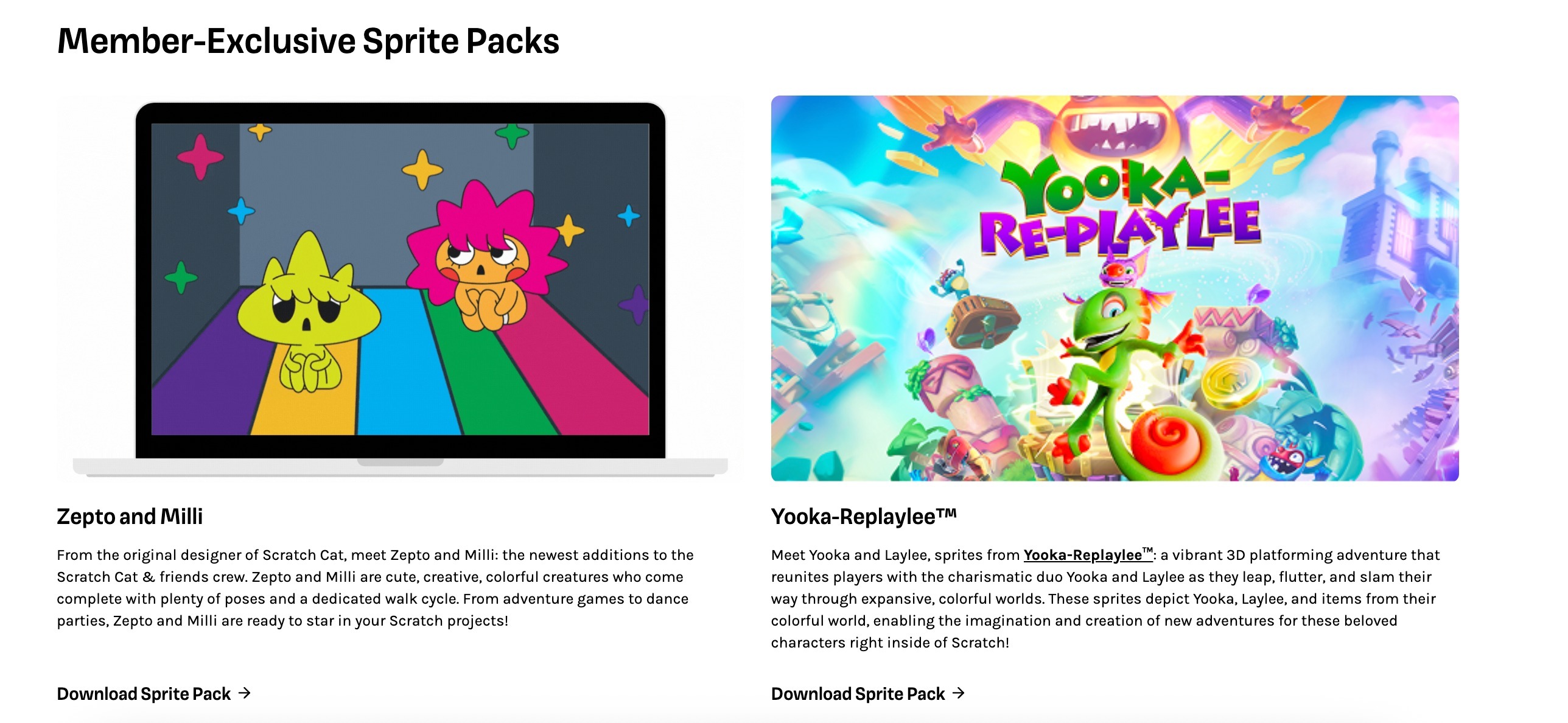
3. Choose your sprites from the Member Sprite Library and click "Download Sprite Pack" below the sprite you wish to use. It will look like the screenshot below. If you need help using your sprite, check out our guide to using sprites in Scratch.
2. Visit the My Account page and click "Download Sprite Packs" (the direct link for this page is https://www.scratchfoundation.org/scratch-member-sprite-library, but you must be logged in to see it)
3. Choose your sprites from the Member Sprite Library and click "Download Sprite Pack" below the sprite you wish to use. It will look like the screenshot below. If you need help using your sprite, check out our guide to using sprites in Scratch.
Was this article helpful?
That’s Great!
Thank you for your feedback
Sorry! We couldn't be helpful
Thank you for your feedback
Feedback sent
We appreciate your effort and will try to fix the article